Why Google and Meta reject your ads — the most common reasons and what to do about them
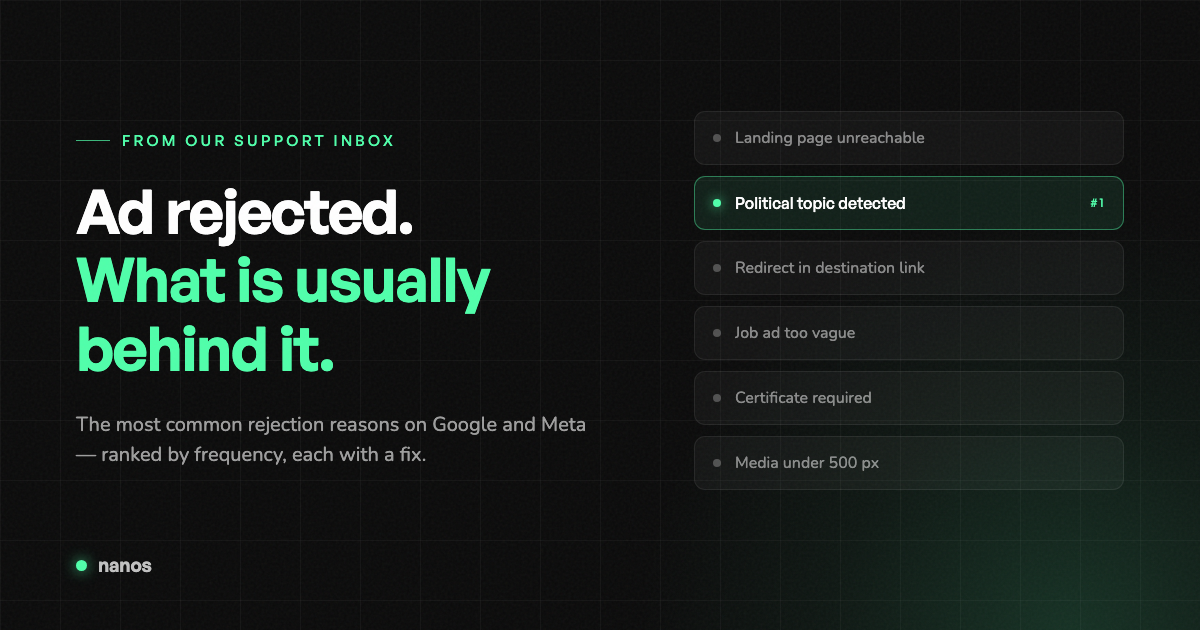
“Ad rejected” is the message that generates more support questions than any other — and almost always with the same worry behind it: did I do something wrong?
Usually not. We went through our support inbox and collected the rejection reasons that actually come up most often. This post walks through them in order — what each message really means, and what to do about it. It’s written for anyone with access to the ad account — and for anyone who has received an email from us with the reason for a rejection. Most of the steps below happen directly in the ad account.
In short: the vast majority of rejections are solvable, and most of them trace back to a handful of recurring causes. The dangerous mistake isn’t the rejection itself — it’s how people react to it. More on that in a moment.
Why ads get rejected in the first place
Before an ad runs publicly, Google and Meta check it — at first not by humans, but automatically, by their own AI. This review AI checks the text, the image and the linked website to see whether everything meets the (very extensive) advertising rules. It usually takes up to 48 hours.
The crucial point: this review AI doesn’t read like a human. It recognises patterns, not context — and when in doubt would rather reject too much than too little. That’s why completely harmless ads get rejected regularly, often with no clearly identifiable reason. This comes from the platforms, not from Nanos, and unfortunately we have no direct influence over it.
So a rejection isn’t a verdict on your ad. It’s an intermediate step.
Three rules before you change anything
These three points prevent or solve more problems than any single tip further down:
1. Don’t panic-edit over and over. Every change sends the ad back into review. If the platform keeps rejecting it, the risk rises that it suspends the entire ad account — many times more painful than a single rejected ad. Find the cause first, then make one targeted change.
2. For stubborn rejections, swap the image, not just the text. Very often the cause is in the visual, not the words. Because people intuitively work on the copy first, this is regularly overlooked.
3. An appeal can help — especially if a real human then reviews the case. Sometimes a wrong rejection is even reversed on its own. If you’re sure the rejection is unjustified: the appeal is filed in the ad account. So tell whoever has access to it first — if they get stuck, they can come to us and we’ll request another review from the platform.
The most common rejection reasons
1. “Political or social issues” (Meta)
By far the most common rejection reason on Facebook and Instagram — and the most frustrating, because it constantly hits completely harmless ads.
The reason: Meta classifies an ad as “political” the moment it — or the linked page — mentions a political figure or an official. And Meta explicitly counts a mayor among these. Social topics like elections or environmental protection are enough too.
That’s why things get rejected that aren’t meant politically at all: a town festival, an open day, a museum event, a mayor’s welcome note in the programme. The review AI only sees the name or the topic — not the harmless context.
You have two routes:
- Remove the political reference (the easier route). Take the mention out of both text AND image — both have to be clean, not just the text. Note: if the name also appears on the linked website, it can still be rejected.
- Get authorised (the more involved route). If the reference has to stay, Meta requires an official approval process: verify the ad account, add a so-called disclaimer on the Facebook/Instagram page (a small “who’s paying for this ad” note) and link it to the ad account. Then let us know and we’ll set the campaign up accordingly.
Very important: don’t keep re-publishing the ad without removing the reference or getting authorised. Without those steps it will be rejected again — and repeated rejections can cause your entire ad account to be suspended.
2. “Landing page unreachable / not crawlable” (error 404, 503)
Two terms, so the message makes sense. The landing page is the website people land on when they click your ad — the target page. “Crawling” means Google and Meta automatically send out a small program that visits and reads this page to check whether it’s OK. If that fails, the ad is rejected — the platform doesn’t want to send anyone to a broken page.
The error numbers reveal the problem: 404 means “page not found” (a typo in the link, or the page was deleted), 503 means “server currently unreachable”.
Here’s how to tackle it:
- Open the link yourself in your browser. Does the page load normally? If not, that’s exactly the problem.
- Check that it’s the final address without a redirect — see point 3.
- The page may be technically blocking the review program. Usually only the website’s operator (or their tech team or agency) can change that.
3. “Redirect / destination mismatch” (Google)
A redirect is when you enter one address but the browser automatically sends you to a different one. Example: you type company.com/promo but actually land on company.com/summer-special-2026. Short links like bit.ly are a typical case.
On Google, such redirects are not allowed in ads. Google only accepts the final destination address — the page people actually end up on.
The fix: open the link yourself in your browser, look at which address ends up in the address bar, and enter exactly that into the campaign. Our system already warns you at input time when it detects a redirect.
4. Job ads getting rejected (Meta)
Facebook and Instagram review job ads especially strictly, because a lot of fraud happens through job advertising. The review AI sounds the alarm as soon as an ad contains too little concrete information or sounds too good — and then quickly, wrongly flags it as a scam.
Here’s how to reliably get through review:
- State specifically what it’s about. The exact job title (e.g. “Electrician (m/f/d)”) absolutely belongs in the ad text — not just the image. The review AI reads text more reliably than images.
- Describe the role briefly and factually. The clearer, the better.
- Avoid exaggerations and vague promises. “Dream job”, “above-average pay” or specific salary claims are typical triggers.
Rule of thumb: as concrete and matter-of-fact as possible. That resolves the vast majority of job rejections. There’s still never a 100 % guarantee with Meta.
5. “Certificate required” (Google)
Some topics and industries may only be advertised on Google with a special approval, called a “certificate” in the system. Two cases come up especially often:
Tickets and admission. As soon as your ad sells tickets, Google requires this proof — a safeguard against dodgy ticket sellers. The route there: you or the event organiser fills in a form at Google and waits for approval. After the form, it can take anywhere from a few minutes to two days before the campaign runs.
Healthcare, pharmacies, protected brand names. Here’s the detail that surprises many: Google looks not only at your ad, but also at the content of the linked website. A real example: you’re “only” advertising for pharmacy staff — but because the linked page lists health services, the healthcare policy kicks in and the ad is rejected, even though it’s really about a job.
An appeal can be worth it, especially with a short explanation of what it’s really about. Fundamentally, though, the advertising company has to apply for the certificate — that process runs directly at Google and can’t be completed on your behalf. If you get stuck on the form, get in touch.
6. Instagram: “subscribe or allow personalised ads”
This isn’t a rejection of your ad in the real sense, but a setting in the Instagram or Facebook account. Background: in Europe, Meta introduced a choice where users either allow personalised ads or take out a paid ad-free subscription. If the linked account is set to “less personalised ads”, no advertising can run through it.
The most common trigger: check the linked Instagram account in particular. Between Facebook and Instagram, the stricter setting always applies. Often Facebook is fine, but the Instagram account is set to “less personalised ads” — which then blocks everything.
The path in the Meta account: click the profile picture → “Settings & privacy” → “Settings” → “Account Centre” → “Ad preferences” → “Ad experience” → choose and confirm the full personalised option. Then the campaign runs again.
7. “Phone number in ad text” (Google)
On Google ads, a phone number in the text simply isn’t allowed — neither in the headline nor the description. That’s a firm Google rule.
But there’s a better solution that Google explicitly offers: the call extension. It’s an extra field next to your ad where the phone number appears as a clickable call button — on mobile, users can call directly from it. It even looks more professional than a number in the middle of the copy. We’re happy to enable it in your account, just let us know.
8. “Media not wide enough” (Instagram)
One of the easiest messages to fix. “Media” means your image or video. Instagram requires it to be at least 500 pixels wide. If your asset is narrower, the ad won’t run on Instagram — it would otherwise look pixelated and blurry.
The fix: upload a larger, higher-resolution image or video. Small logos, screenshots or mini-images copied from the web are the typical stumbling block.
9. The link is correct but the ad is still rejected (error 414)
A tricky one, because your link is objectively correct. The reason lies deeper: when redirecting, Facebook automatically appends a long chain of technical extra information to the address, which it uses for reporting. So company.com becomes a very long address.
Some websites are technically configured to reject such long addresses — the server responds with an error, often “414”, and the ad can’t be delivered. To you the link looks correct; to the target page’s server it’s too long.
This can’t be fixed in Nanos, only on the target server: the website’s operator has to adjust the setting so it accepts longer addresses. If you need a guide for this, we’re happy to point you to it.
10. The landing page is a PDF or an image
Short and unambiguous: the destination URL has to be a real web page, not a file. A linked PDF programme or a JPEG of the flyer won’t do — the platforms reject it. Set up a proper page instead and link the PDF from there if you want to offer it as well.
When nothing runs, but the ad wasn’t rejected
Not every “my ads aren’t running” is a rejection. These three cases look identical from the outside but have a different cause — and a different fix.
Permission error: “Something went wrong” when connecting
To advertise on Facebook or Instagram, the relevant Facebook page must be connected to the ad account. For that to work, two things must be true:
- The page and the ad account are in the same Business Manager (the central place where a company bundles its pages and ad accounts — today also called “business settings” or “business portfolio”).
- The person making the connection is an administrator of that Business Manager — ideally with full admin rights, not just basic access to the page.
The error “Something went wrong” almost always means the linking user isn’t part of the Business Manager that owns the page. The permissions there need adjusting.
“No payment method” / account restricted
For Google or Meta to run ads, they need a valid payment method in the ad account, usually a credit card. If something’s wrong with it — card expired, blocked, or a failed payment — the platform restricts the account and nothing is delivered anymore, no matter how good the campaign is.
Open the payment settings in the affected ad account and add a valid payment method. Once the account is active again, let us know — then we’ll get your campaigns running again.
A common special case: if the advertising platform charges a card several similar amounts in a short time, some banks consider this suspicious and automatically block the card. A quick call to the bank sorts it out.
The entire ad account was suspended
The more serious case — not just one ad is affected, but the whole account is halted. Act deliberately, not hastily:
- Don’t change anything further and don’t re-publish rejected ads. That can make things worse.
- In your ad account, look at the “Policy issues” and “Appeal history” sections. Take a screenshot and send it to us — that helps us find the cause.
- Contact support. Often one specific campaign is the trigger; to get the account reinstated, it may have to be removed.
On expectations: an appeal can help but takes time. There’s no fast-forward button with Google and Meta. We’ll guide you through the process.
Quick reference
| Message | Platform | What’s behind it | First step |
|---|---|---|---|
| Political / social issue | Meta | Official or topic detected | Remove the reference from text and image |
| Landing page unreachable (404/503) | Both | Target page not readable | Open the link yourself in a browser |
| Redirect / destination mismatch | Short link instead of destination | Enter the final address | |
| Job ad rejected | Meta | Too vague or too good to be true | Put the exact job title in the text |
| Certificate required | Tickets, healthcare, brands | Submit the form at Google | |
| Subscribe or allow personalised ads | Account setting on the client side | Set ad experience to full | |
| Phone number in ad text | Firm Google rule | Use the call extension | |
| Media not wide enough | Image under 500 px | Upload a larger image | |
| Error 414 / long URL | Meta | Target server rejects long addresses | Talk to the website operator |
| Landing page is a PDF / JPEG | Both | File instead of a web page | Link a real page |
What to take away
A rejected ad is annoying, but rarely a real problem — in the vast majority of cases one of the causes above is behind it, and they’re all solvable.
The actual risk lies elsewhere: in re-publishing repeatedly without fixing the cause. That’s exactly what turns a rejected ad into a suspended ad account. Take one calm look at what’s behind it, then make a targeted change — that’s almost always the faster route.
And if you’re stuck, or you’re sure the rejection is unjustified: get in touch. We’ll take a look and can request another review from the platform.
Frequently Asked Questions
- Google and Meta review every ad automatically first, using their own AI. That review AI recognises patterns rather than context and, when in doubt, would rather reject too much than too little. That's why it regularly hits ads with objectively nothing wrong with them. This comes from the platforms, not from Nanos.
- By far, being classified as a “political or social issue”. Meta treats an ad as political the moment an official appears in it — a mayor's welcome note for a town festival is enough.
- Usually up to 48 hours. Only after that does the campaign go “active”. Factor that time in if your campaign has to start on a fixed date.
- Better not. Every change sends the ad back into review. If the platform keeps rejecting it, the risk rises that it suspends the entire ad account — far more unpleasant than a single rejected ad. Fix the cause first, then re-publish.
- Swap the image. Very often the cause is in the visual, not the words — which is easy to miss, because people naturally work on the copy first.
- An appeal is worth it, especially with a short explanation — in many cases a human then looks at it. Sometimes a wrong rejection is even reversed on its own. Get in touch with us and we can request another review from the platform.